
How to Delete Instagram Account – Step by Step Guide
Instagram is one of the most popular social media platforms, but sometimes you may want to take a break or permanently remove your account. Whether you’re looking to protect your privacy, reduce screen time, or simply move on, Instagram gives you two options – temporary deactivation or permanent deletion.
Below is a simple guide to help you delete your Instagram account.
Difference Between Deactivating and Deleting Instagram Account
- Deactivation: Hides your profile, photos, likes, and comments temporarily. You can log back in anytime to reactivate.
- Deletion: Permanently removes your profile, posts, followers, and everything else. Once deleted, you cannot recover the account.
How to Deactivate Your Instagram Account (Temporary)
Step 1: Open Instagram
Log in to your Instagram account using the mobile app or website. Visit the official Instagram Account Deletion Page.
Step 2: Go to Your Profile
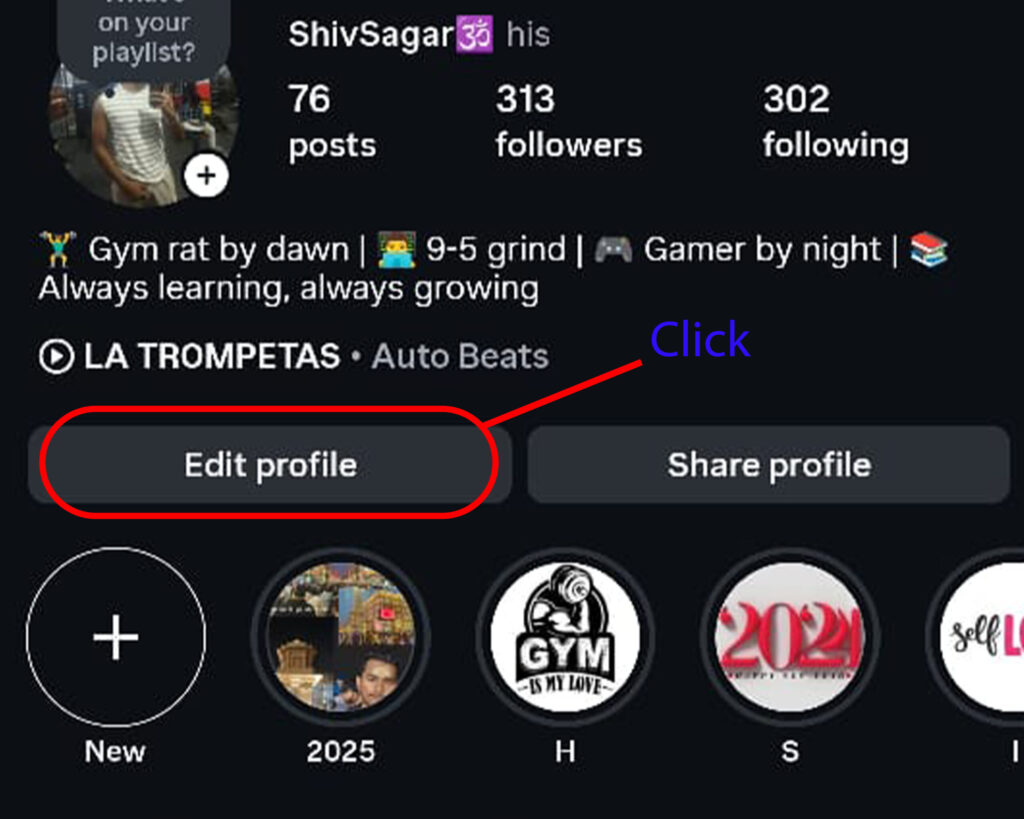
Tap on your profile icon at the bottom right corner and open “Edit Profile.”
Step 3: Open Personal Information Settings
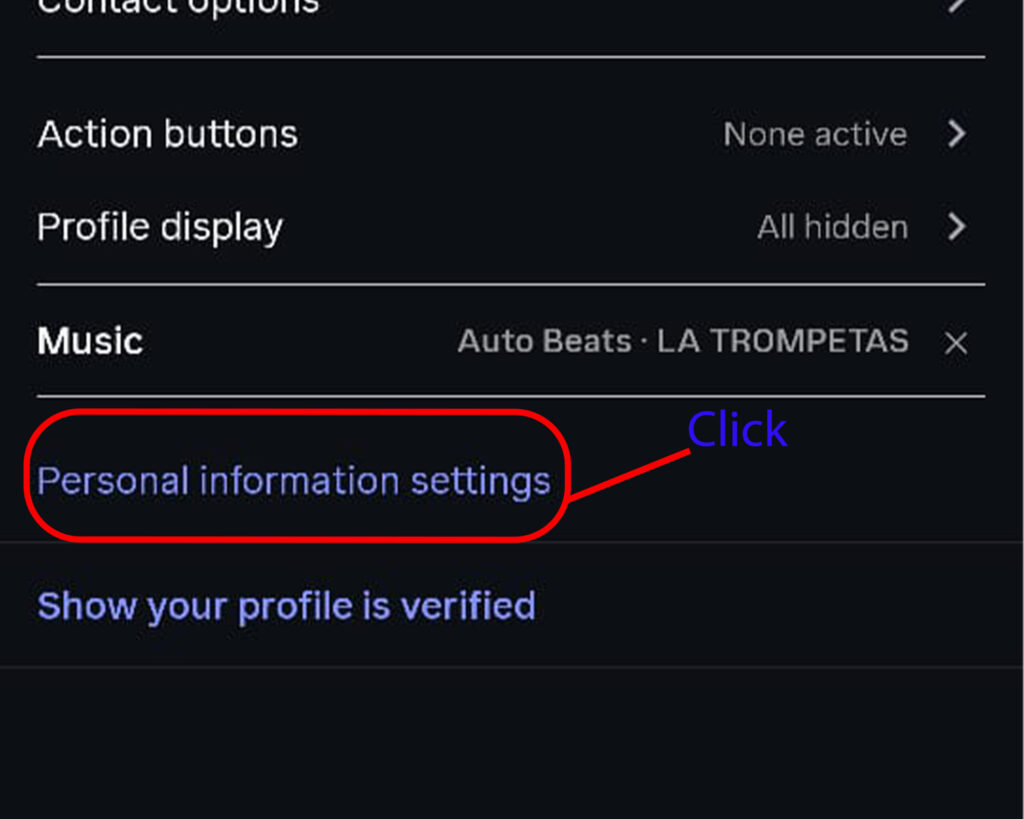
Scroll down and tap on “Personal Information Settings.”
Step 4: Open Personal Details
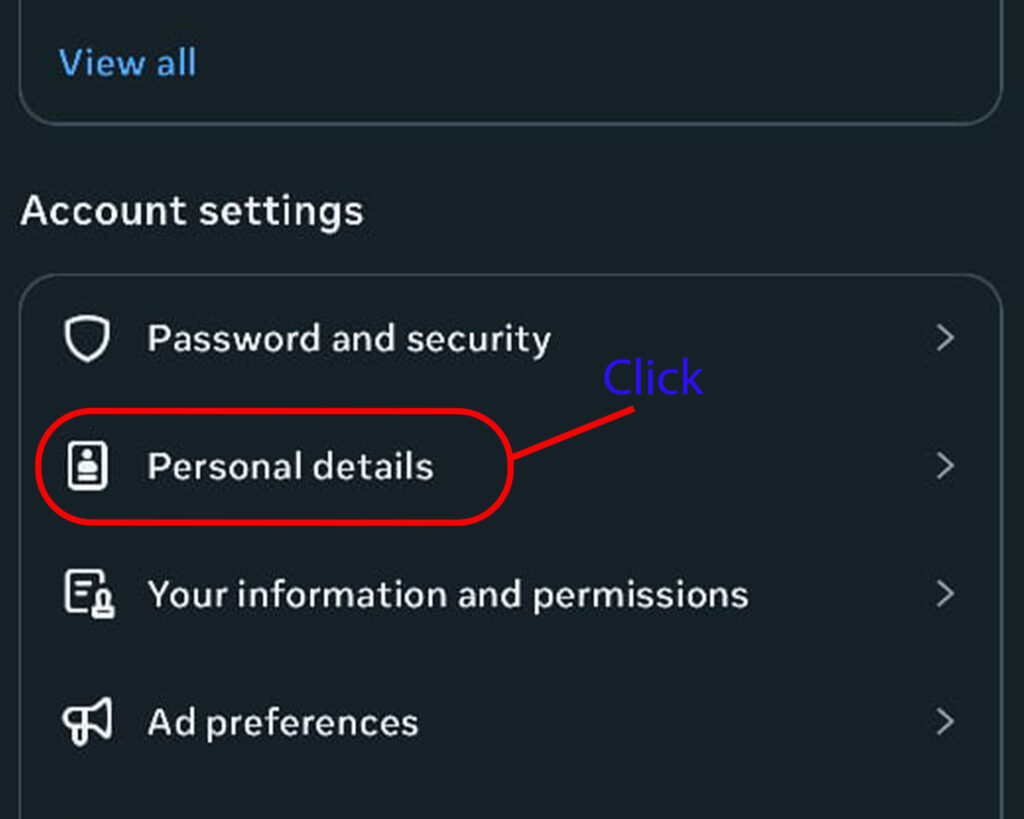
Scroll down and tap on “Personal Details.”
Step 5: Open Account Ownership and Control
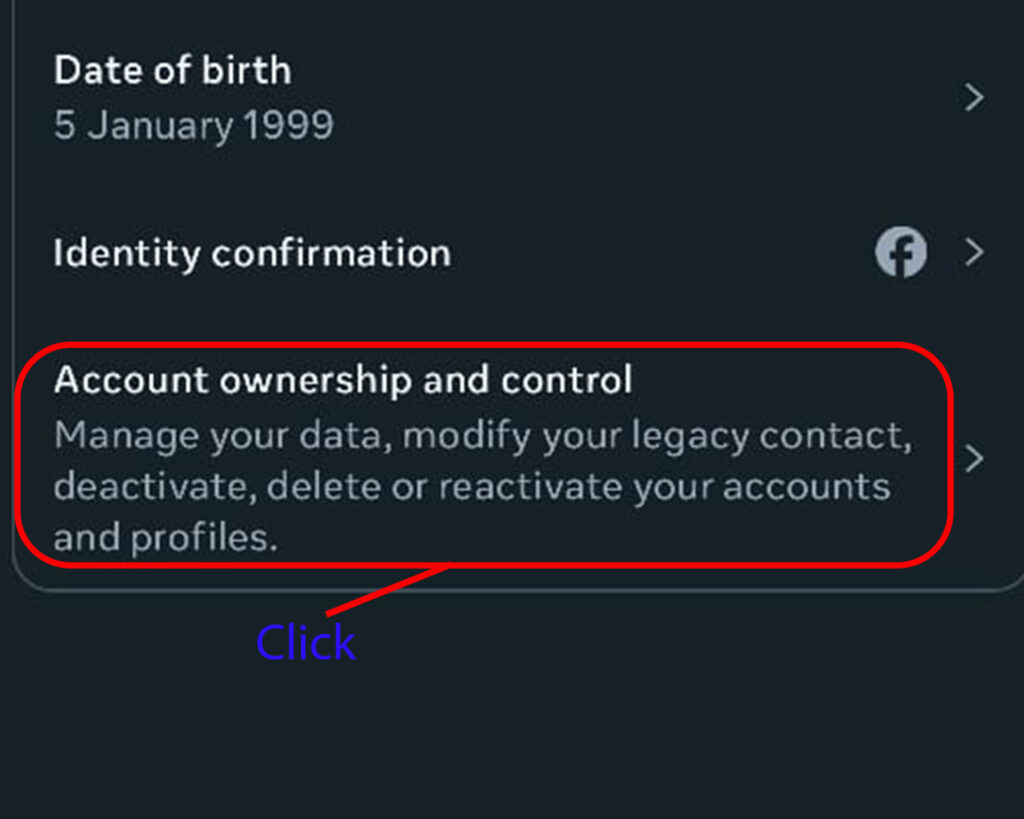
Scroll down and tap on “Account Ownership and Control”
Step 6: Open Deactivation or Delete
Now, tap on “Deactivation or Delete.”
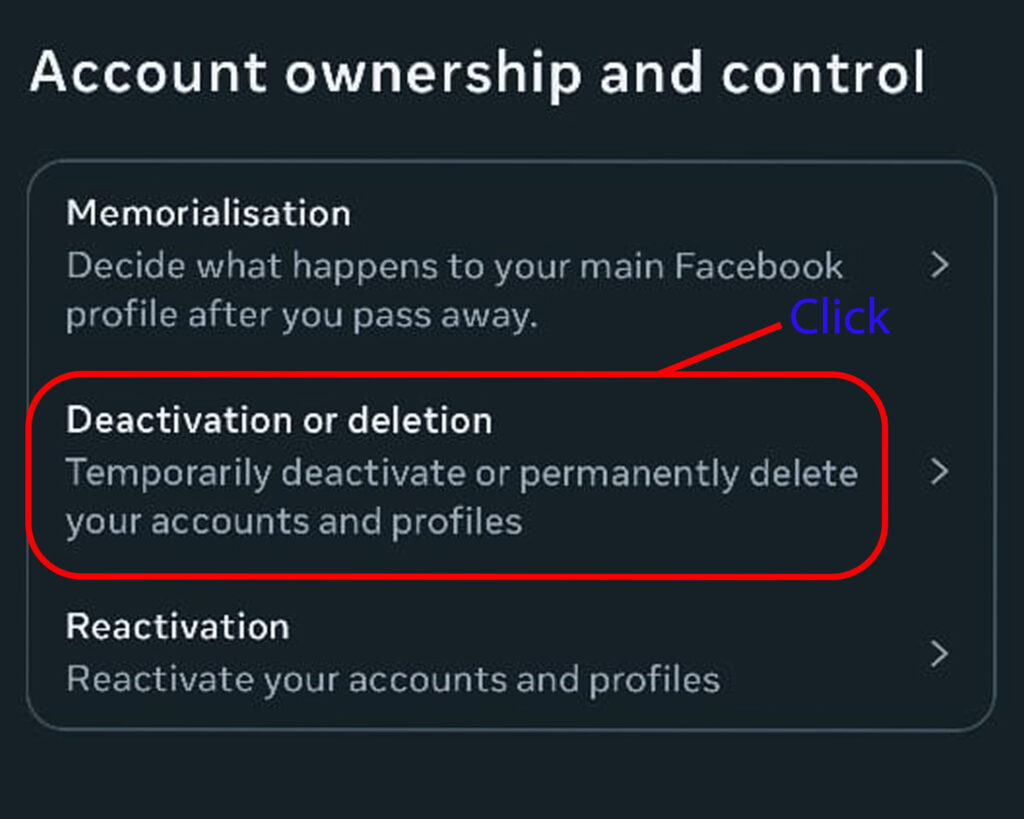
Step 7: Choose Deactivate or Delete
Select whether you want to temporarily deactivate or permanently delete your account, then follow the on-screen instructions to continue.
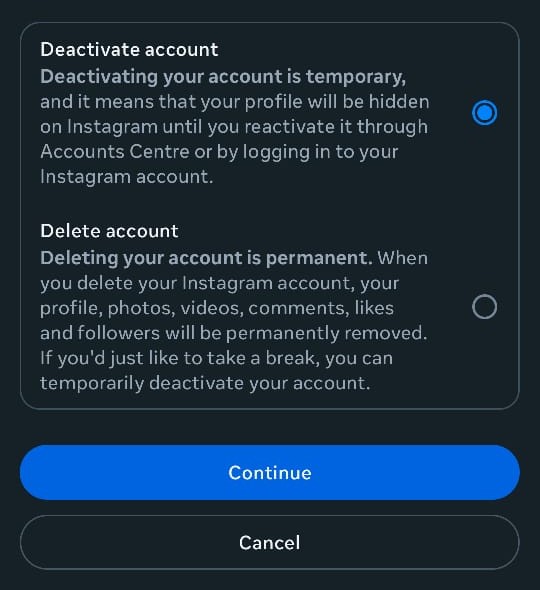
Important Note on Permanent Deletion
- Once you choose Delete Account, Instagram first deactivates your account temporarily.
- After 30 days, your account enters the deletion process.
- It takes up to 90 days for Instagram to completely delete all your data from its servers.
- Recovery Option: If you log in before the 30-day period ends, you can cancel the deletion and recover your account. After that, recovery is not possible.
2. Things to Remember Before Deleting Instagram
- Download a copy of your photos and videos from Instagram Settings > Privacy and Security > Data Download.
- After deletion, your account cannot be restored.
- If you just want a short break, consider deactivation instead of deletion.
Final Words
Deleting an Instagram account is a personal choice, and the process is straightforward if you follow the steps carefully. Decide whether you want to temporarily disable or permanently delete, then proceed using the guide above.
❓ Frequently Asked Questions (FAQ) on Deleting Instagram Account
Q1. Can I delete my Instagram account permanently?
Yes, Instagram allows you to permanently delete your account. Once deleted, your profile, photos, videos, followers, and messages cannot be recovered.
Q2. How do I temporarily disable my Instagram account?
Go to Instagram on a browser, open your profile → Edit Profile → select Temporarily disable my account → choose a reason → re-enter your password.
Q3. Can I delete my Instagram account from the mobile app?
No, Instagram does not allow direct deletion from the app. You need to use a web browser and visit the official Delete Your Account
Q4. What happens when I deactivate my Instagram account?
When deactivated, your profile, photos, likes, and comments are hidden. They will reappear once you log back in.
Q5. How long does Instagram keep my data after deletion?
Once deleted, Instagram removes all your data permanently. However, it may take up to 90 days to fully erase all backups from its servers.
Q6. Can I recover my Instagram account after deleting it?
No. Permanent deletion is irreversible. If you think you may return, it’s better to deactivate instead.
Q7. Should I download my photos and videos before deleting Instagram?
Yes. Use Instagram’s Data Download option in settings to save a copy of all your photos, videos, and account details before deletion.
TECH CONTENT YOU WANT